DKIM keys
DomainKeys Identified Mail (DKIM) secures outgoing emails with an electronic signature. By evaluating this signature, the recipient can see whether the email was sent from the correct domain (ensuring authenticity) and whether it was modified during transport (ensuring integrity).
DKIM-signed emails can also be read by email recipients who cannot evaluate the DKIM signature. For these recipients, DKIM-signed emails look exactly the same as emails without a DKIM signature.
When you add a new DKIM key, the required asymmetric key pair is generated by NoSpamProxy for you. By default, NoSpamProxy generates RSA keys with a length of 2048 bits. The secret private part of the asymmetric key is securely stored in the NoSpamProxy settings and is therefore known only to you.
Adding DKIM keys
When adding a new DKIM key, NoSpamProxy automatically generates an asymmetric key pair for the DKIM signature. By default, NoSpamProxy generates RSA keys with a length of 2048 bits.
- Go to Identities > Email authentication > DKIM keys.
- Click Add.
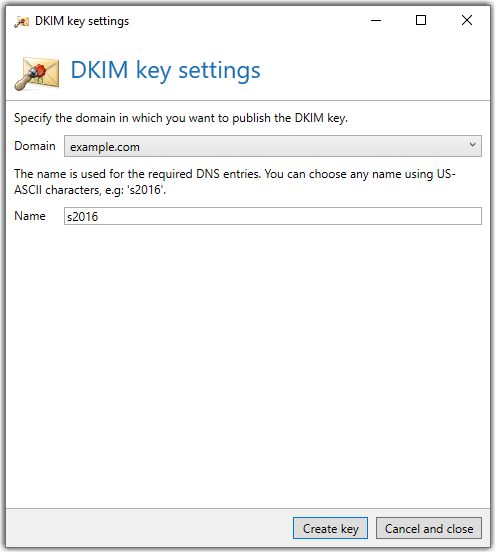
- Specify the domain where you want to publish the DKIM key.
- Specify a selector.
- Click Next.
- Publish the two entries shown to the DNS zone of the respective domain.
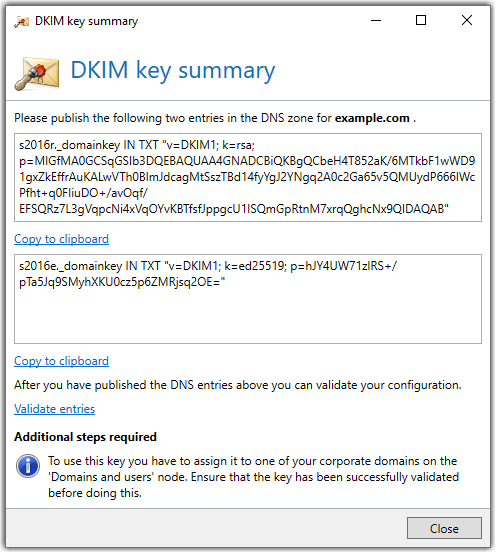
- Click Finish.
NOTE: To use the DKIM key, you must activate it under Corporate domains. Before doing so, make sure that the verification of the key is successful.
TIP: Alternatively, you can create your own RSA key with OpenSSL, for example, and import it using the corresponding button.
Enabling DKIM for corporate domains
You will need to activate the DKIM keys you create for your corporate domains. See Activating DKIM.
Importing DKIM keys
- Go to Identities > DKIM keys > DKIM keys.
- Click Import key.
- Select the key on your hard disk and click Open.
- On the following page, select the corporate domain where you want to publish the key.
- Assign a name for the selector and click Next.
- Follow the instructions on the next page.
- Click Finish.
Exporting DKIM keys
TIP: We recommend that you export the DKIM key so that you can recover it in case of data loss. You can do this using the Export key button. The key is stored in PKCS#8 format.