Certificate retrieval at SwissSign fails with "The request was aborted: Could not create SSL/TLS secure channel
Error
Although the configuration for SwissSign has been carried out correctly at Cryptographic key providers and all gateway roles have access to ra.swisssign.net via TCP 443 (https), the following error message appears in the event log when certificates are retrieved:
ID: 026f7e58-9be2-4434-b562-11016c181bfd
Created: 12.06.2015 12:15:56
Mail address: Test.User@example.com
Request type: CertificateRequest
Request status: Failed
Failure status: TrustCenterError
Error text: Unexpected error:
Message: An error occurred while sending the request.
Error type: System.Net.Http.HttpRequestException
Error code: 2148734208
Program location: at System.Runtime.CompilerServices.TaskAwaiter.ThrowForNonSuccess(Task task) at System.Runtime.CompilerServices.TaskAwaiter.HandleNonSuccessAndDebuggerNotification(Task task) at System.Runtime.CompilerServices.TaskAwaiter`1.GetResult() at Netatwork.NoSpamProxy.Cryptography.SwissSignCertificateProvider.<EnrollAsync>d__e.MoveNext()
The request was aborted: Could not create SSL/TLS secure channel.
Message: The request was aborted: Could not create SSL/TLS secure channel.
Error type: System.Net.WebException
Error code: 2148734217
Program location: at System.Net.HttpWebRequest.EndGetRequestStream(IAsyncResult asyncResult, TransportContext& context) at System.Net.Http.HttpClientHandler.GetRequestStreamCallback(IAsyncResult ar)
Subject name:E=test.user@example.com, CN=Secure Mail: Gateway Certificate
Cause
Both in the certificate store of the computer account of one or all gateway roles and in the certificate store of the NoSpamProxy Encryption Gateway is the pseudo AutoRAO service certificate for authentication with the service provider SwissSign.
Solution
- Go to Identities > Key enrolment > Key enrolment providers.
- Open the configuration for SwissSign.
- Click on the stored pseudo AutoRAO certificate.
The certificate details that help identify the correct certificate in the computer account's certificate store are displayed.
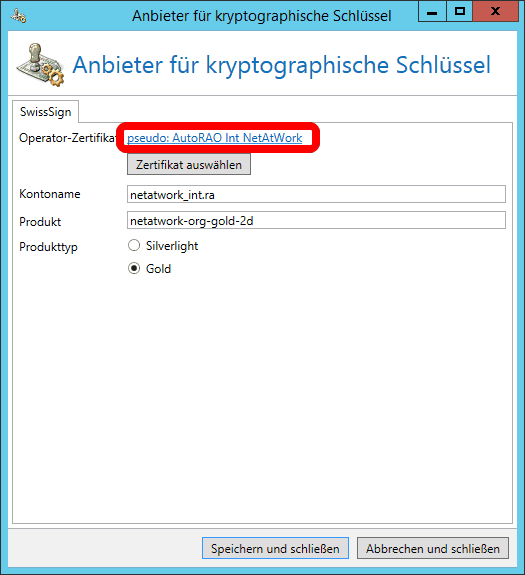
- As administrator, open mmc.exe on the Gateway Role.
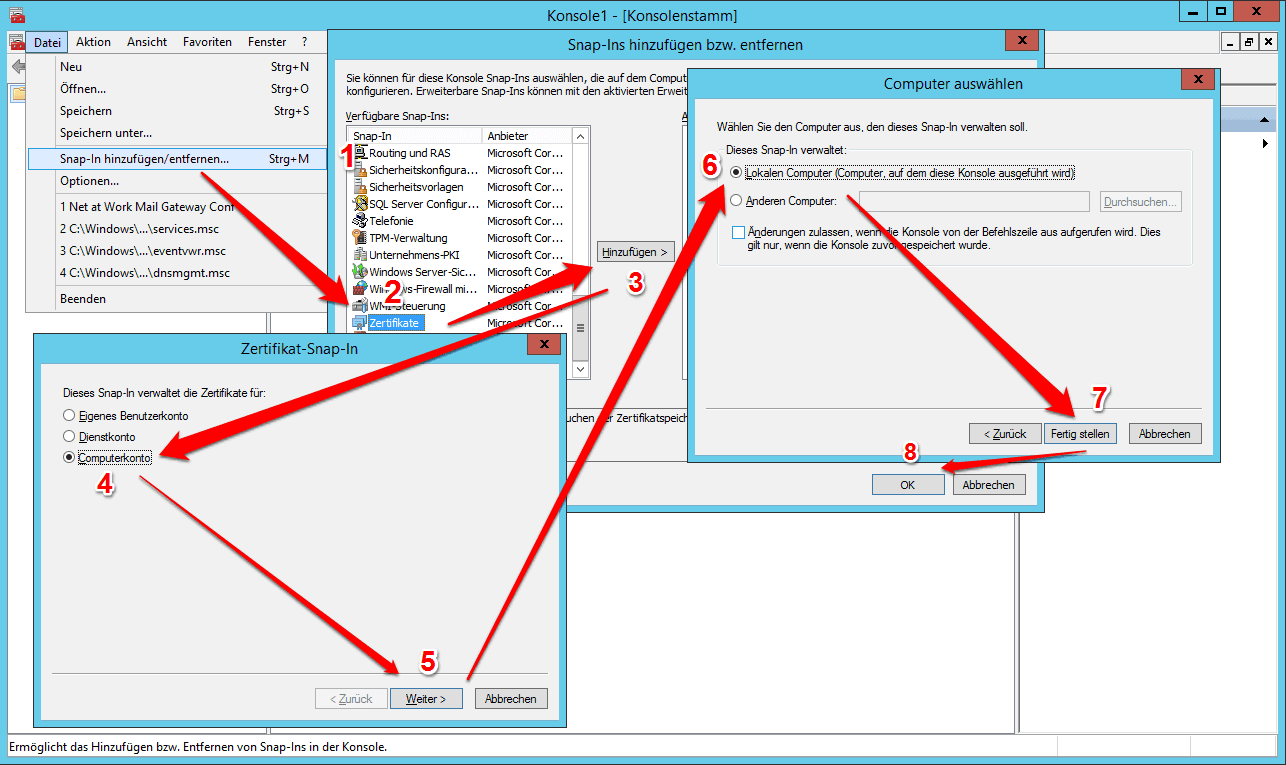
- Under File, click Add/Remove Snap-In.
- Select Certificates and click Add.
- In the new window, select the computer account and click Next.
- Select Local Computer and click Finish.
- Click OKin the snap-in selection.
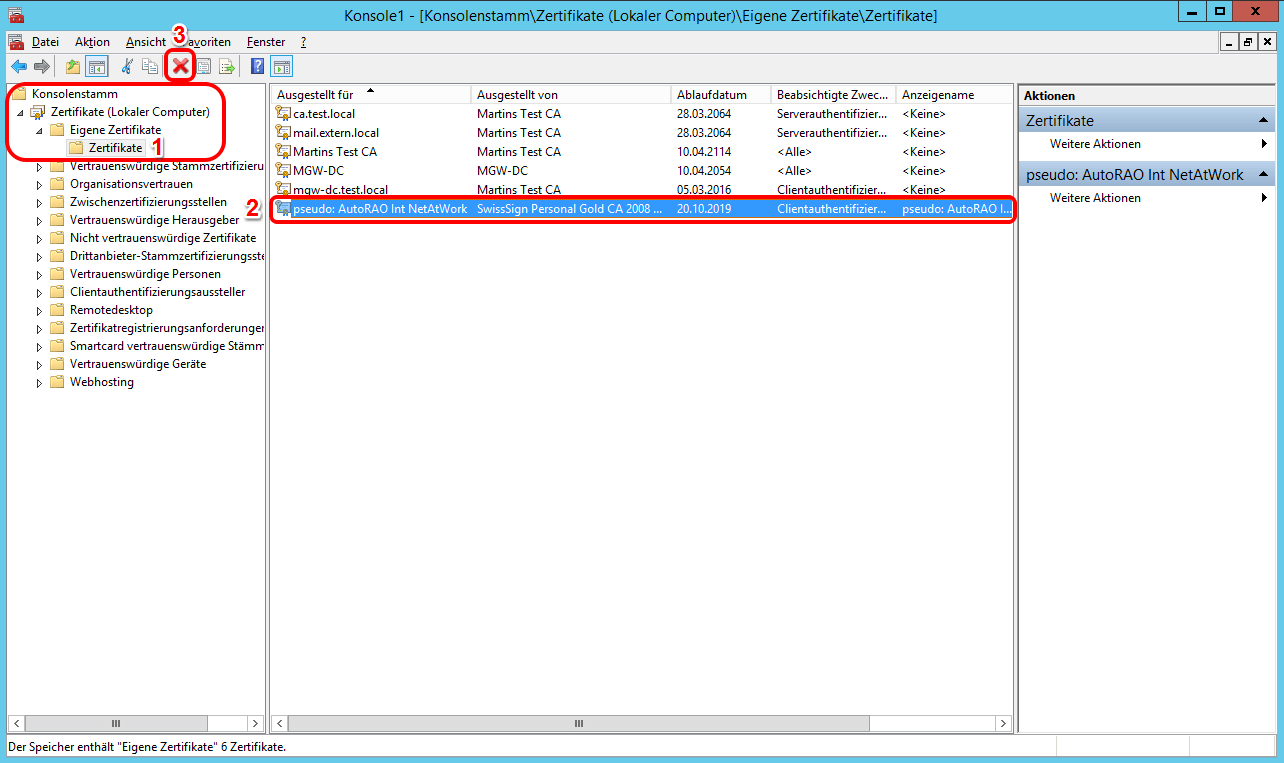
- Go to My Certificates and find the pseudo AutoRAO service certificate.
- Delete the certificate.
- Restart the affected Windows system of the Gateway Role.
NOTE: Repeat the above steps for all other Gateway Roles as required.