Assigning content filters
You can assign content filter sets
- as default partner settings,
- for individual partner domains,
- as the default setting for corporate users or
- for individual Active Directory groups
.
TIP: During processing, we check the configured content filters both on the partner side and on the corporate user side. To prevent an unwanted content filter from being applied, we recommend initially defining this setting as the default setting for partners or company users. This also improves clarity. In any case, you should select the filter Strict/Streng for this default setting and only make absolutely necessary, granular adjustments for partner domains or AD groups.
 Under Partner
- in the default partner settings
- Go to Identities > Partners > Default partner settings.
- Click Modify.
- Stay on the Content filter tab.
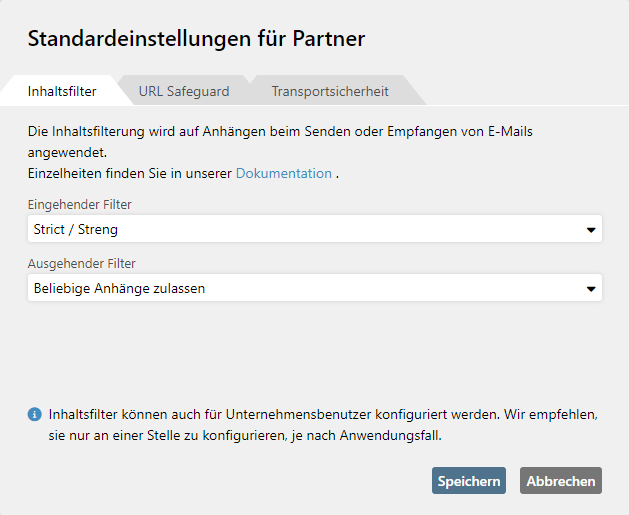
- Select the desired content filter sets for inbound and outbound emails.
- Click Save.
- for a partner domain
- Go to Identities > Partners.
- Open the entry for the partner domain you want to edit.
- Stay on the Content filter tab.
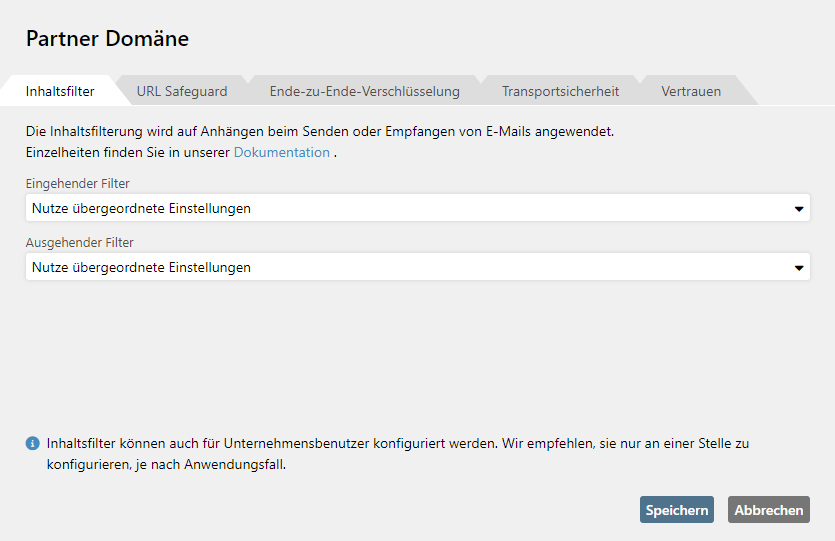
- Select the desired content filter sets for inbound and outbound emails.
- Click Save.
Under Corporate users
- In the default settings for corporate users
- Go to Identities > Corporate users > Content filtering.
- Click Modify.
- Select the desired content filter sets for inbound and outbound emails.
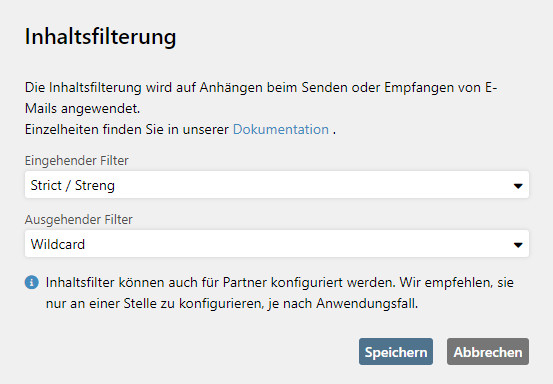
- Click Save.
For individual Active Directory groups
- Go to Identities > Automatic user import.
- Open the automatic user import that contains the group you want to edit.
- Go to the tab Group and open the group you want to edit.
- Stay on the Content filter tab.
- Select the settings for inbound and outbound emails.
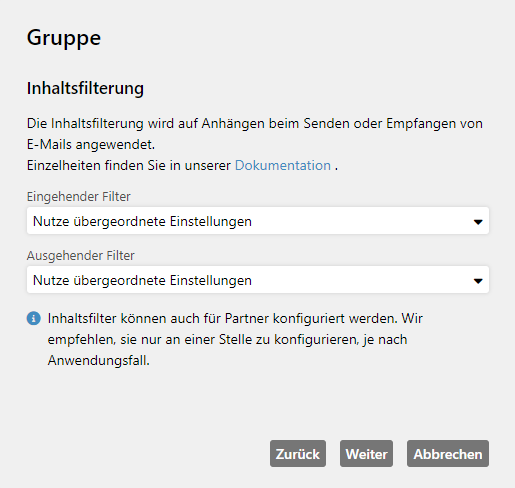
- Click Save.